
Welcome to Ocelot Plus Support! In this guide, we'll walk you through the simple steps to submit a ticket to our support team, ensuring your questions and concerns are addressed promptly.
For Users inside the Ocelot Plus Dashboard
- Login to https://support.ocelotplus.com.au/a/tickets/filters/open
- This will direct you to the “Tickets” form where you can click the “New” button and select from its dropdown list.
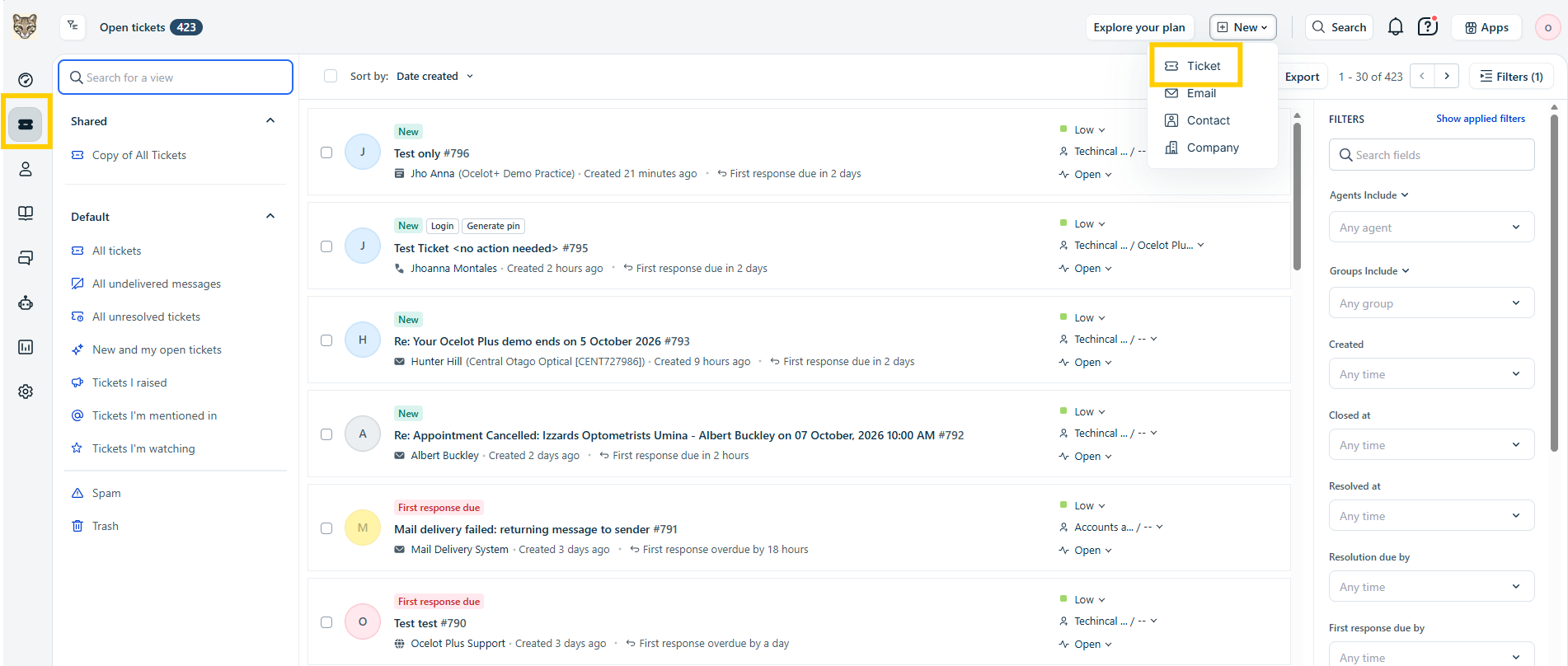
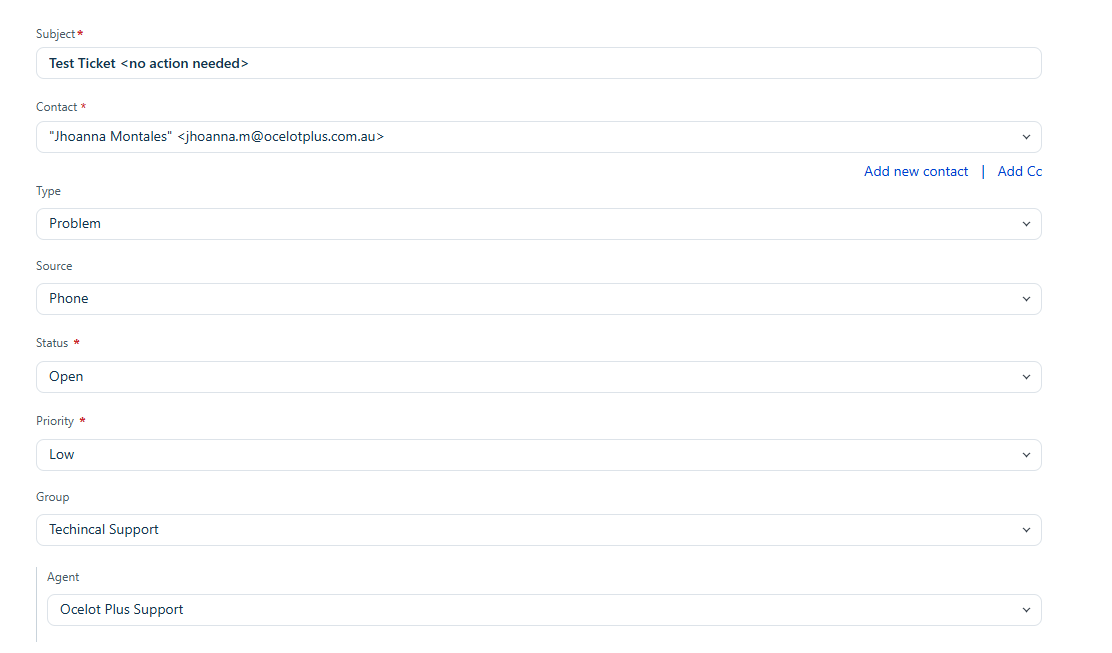
- Contact - The email address of the requester
- Subject - The topic of your concern
- Type - Select from the list below:
- Question
- Incident
- Problem
- Feature Request
- Refund
- Status - Select from the list below:
- Open
- Pending
- Resolved
- Closed
- Priority - Select from the list below:
- Low
- Medium
- High
- Urgent
- Group - Select from the list below:
- Accounts and Billing
- Privacy
- Technical Support
- Agent - Select from the list below:
- Ocelot Plus Marketing
- Ocelot Plus Support
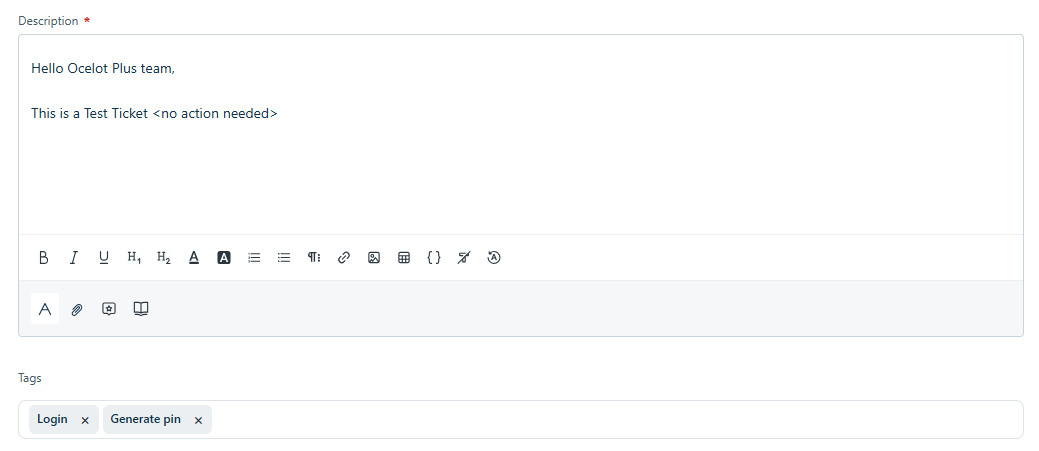
- Description - The details of your concern
- Tags - Related topics to be tagged but is optional
Note: Ticking on the “Create another” box will let you stay on the same page for you to create another ticket.
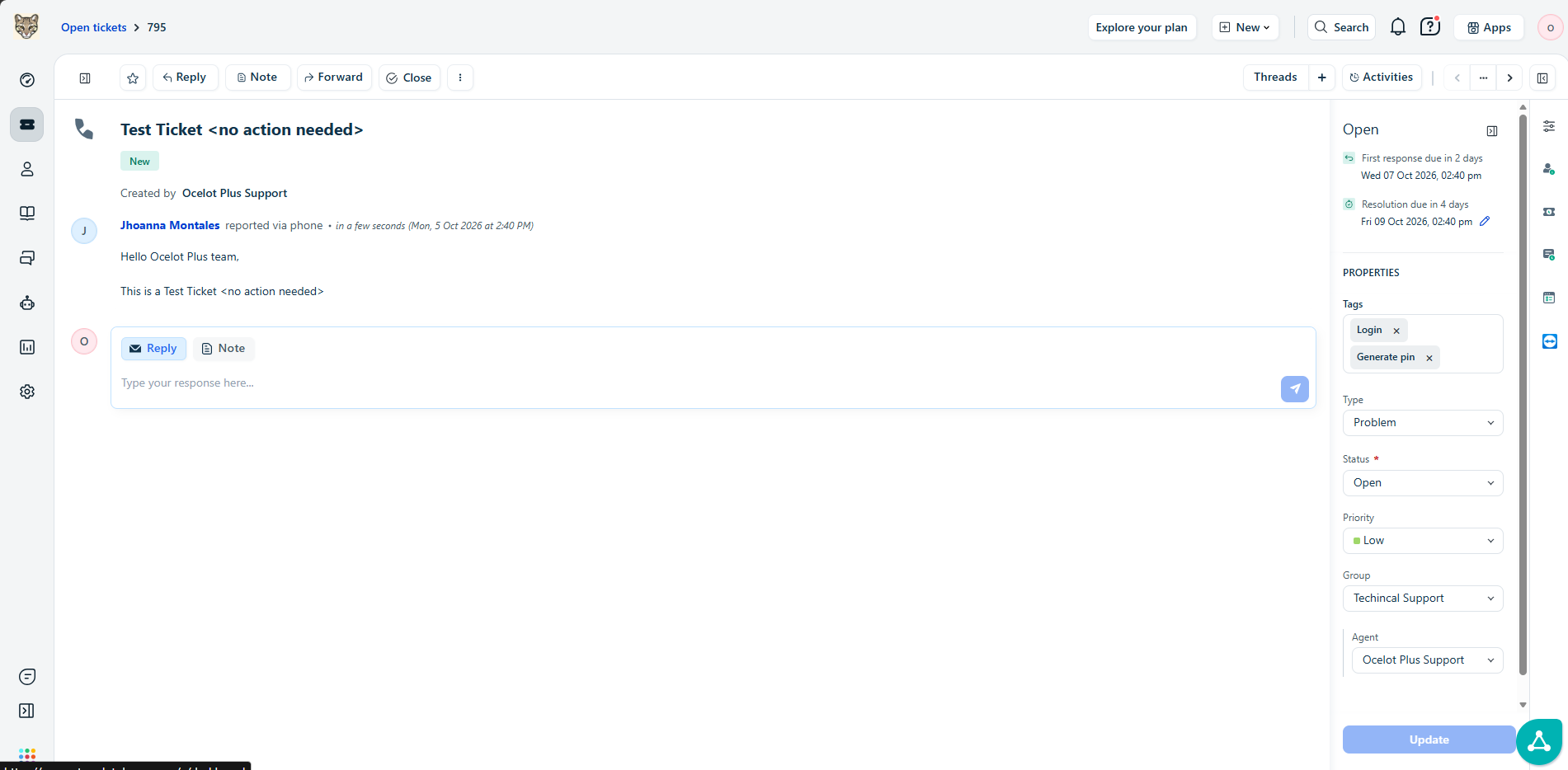
Note: The dropdown indicator within the 'Create' button enables you to submit a ticket with a 'Closed' status.
For Users navigating through the Ocelot Plus Knowledge Base
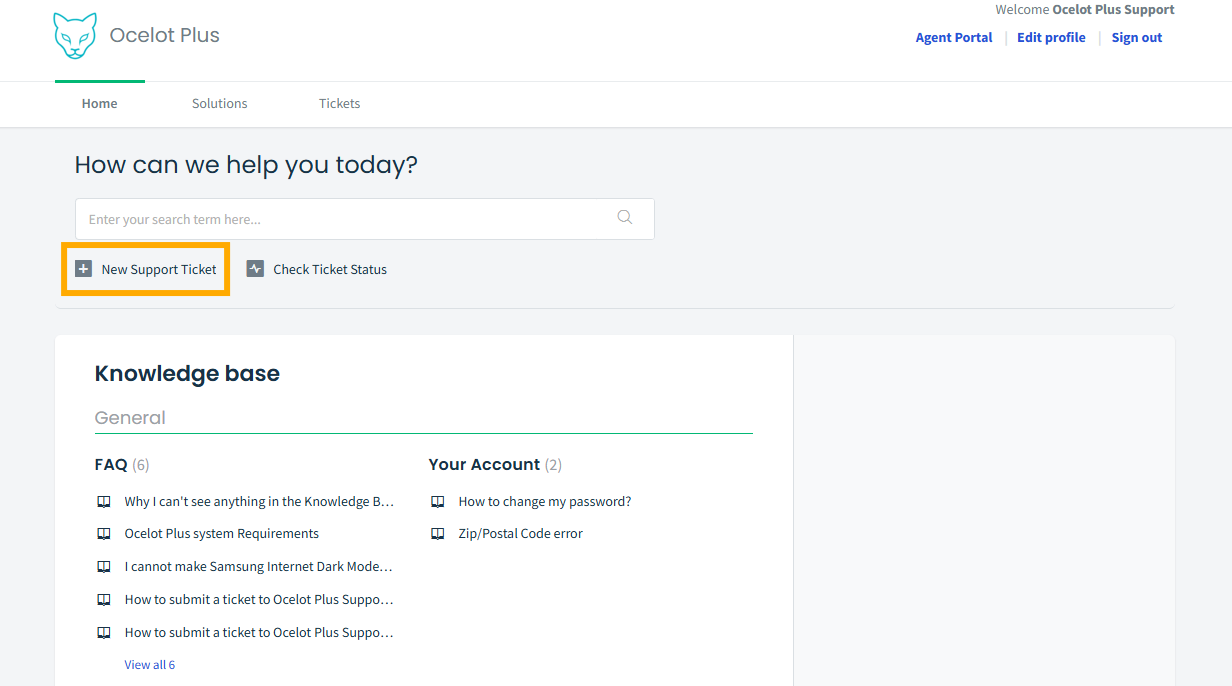
- Go to Home | Support : Ocelot Plus and click New Support Ticket the top-right
Note: You must be logged in to submit a ticket to Ocelot Plus Support.
 2. Fill in the required fields.
Note: The Requester field is filled in automatically and can't be changed.
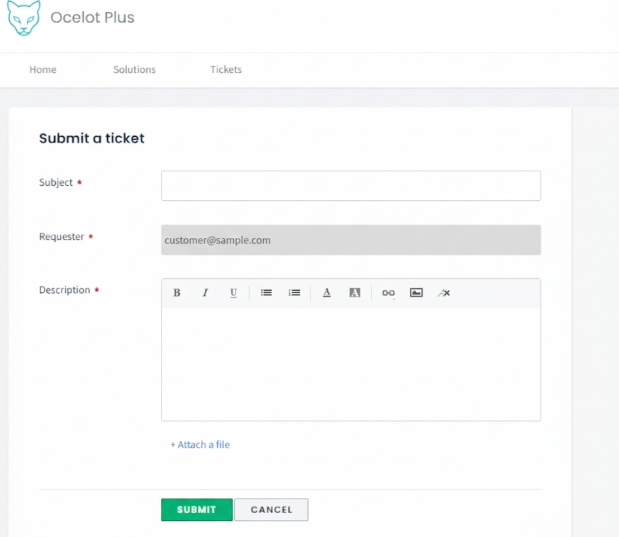
3. Click Submit to send your ticket, or Cancel to discard it.
Congratulations! You've successfully submitted a ticket to Ocelot Plus Support. Our team will now review your request and get back to you as soon as possible. Thank you for reaching out to us for assistance.